How to View WordPress debug.log Without FTP
When something breaks in WordPress, debug.log is often the fastest source of truth — PHP notices, fatal errors, and plugin warnings. The pain is getting to the file: FTP, SFTP, cPanel File Manager, or hunting the path on every host.
Here’s how to enable logging properly, and how the Debug Log Viewer in Zelvigo Dev Studio lets you read and clear the log from admin. It’s a local tool — no Pro license required.
Enable logging safely
In wp-config.php (above “That’s all, stop editing!”):
define('WP_DEBUG', true);
define('WP_DEBUG_LOG', true);
define('WP_DEBUG_DISPLAY', false);
Keeping WP_DEBUG_DISPLAY false avoids printing errors to visitors. Prefer staging over production when possible.
What Debug Log Viewer shows
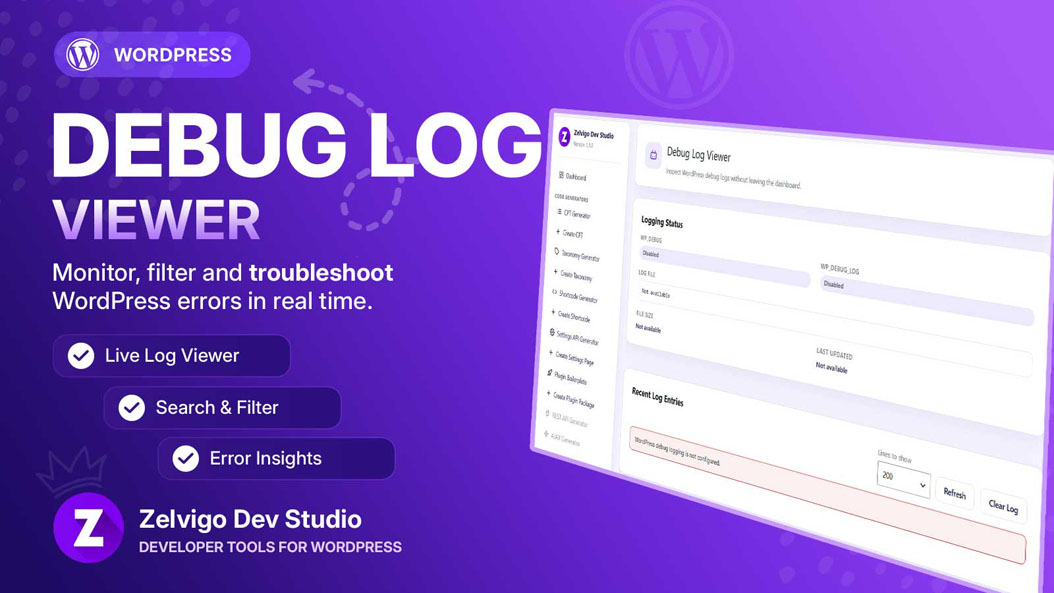
- Logging status — debug flags, log path, size, last modified
- Recent entries — tail of the log (default last 200 lines)
- Refresh — reload while you reproduce a bug
- Clear log — start a clean run
Open it from Zelvigo Dev Studio → Debug Log Viewer.
A simple debug workflow
- Enable logging in
wp-config.php - Clear the log
- Reproduce the issue once
- Refresh and read only the new lines
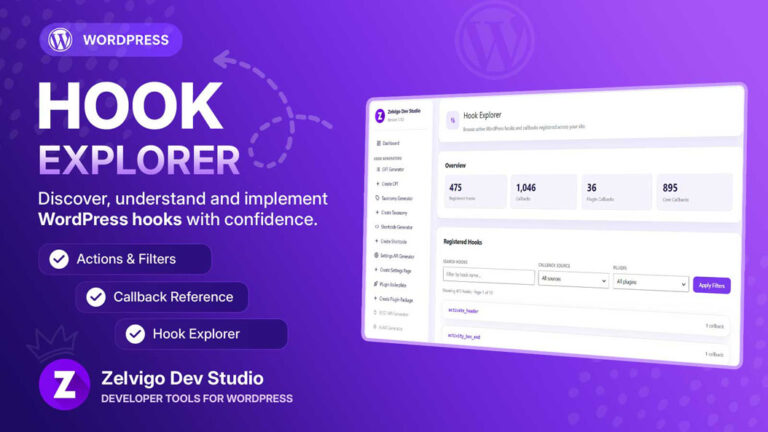
- If hooks look suspicious, open Hook Explorer next
More detail in the documentation.
Next step
Stop downloading log files for every small bug. Read them in admin, clear, repeat — then get back to building.