
WordPress Debug Log Viewer
Inspect debug.log from WordPress admin — no FTP, no cPanel, no hunting for the file path on every host.
A local development tool inside Zelvigo Dev Studio. Works on your site without a Pro license or cloud connection.
Debugging shouldn’t require a file manager
When something breaks, you enable WP_DEBUG_LOG — then spend time locating wp-content/debug.log, downloading it, and clearing it after each test cycle.
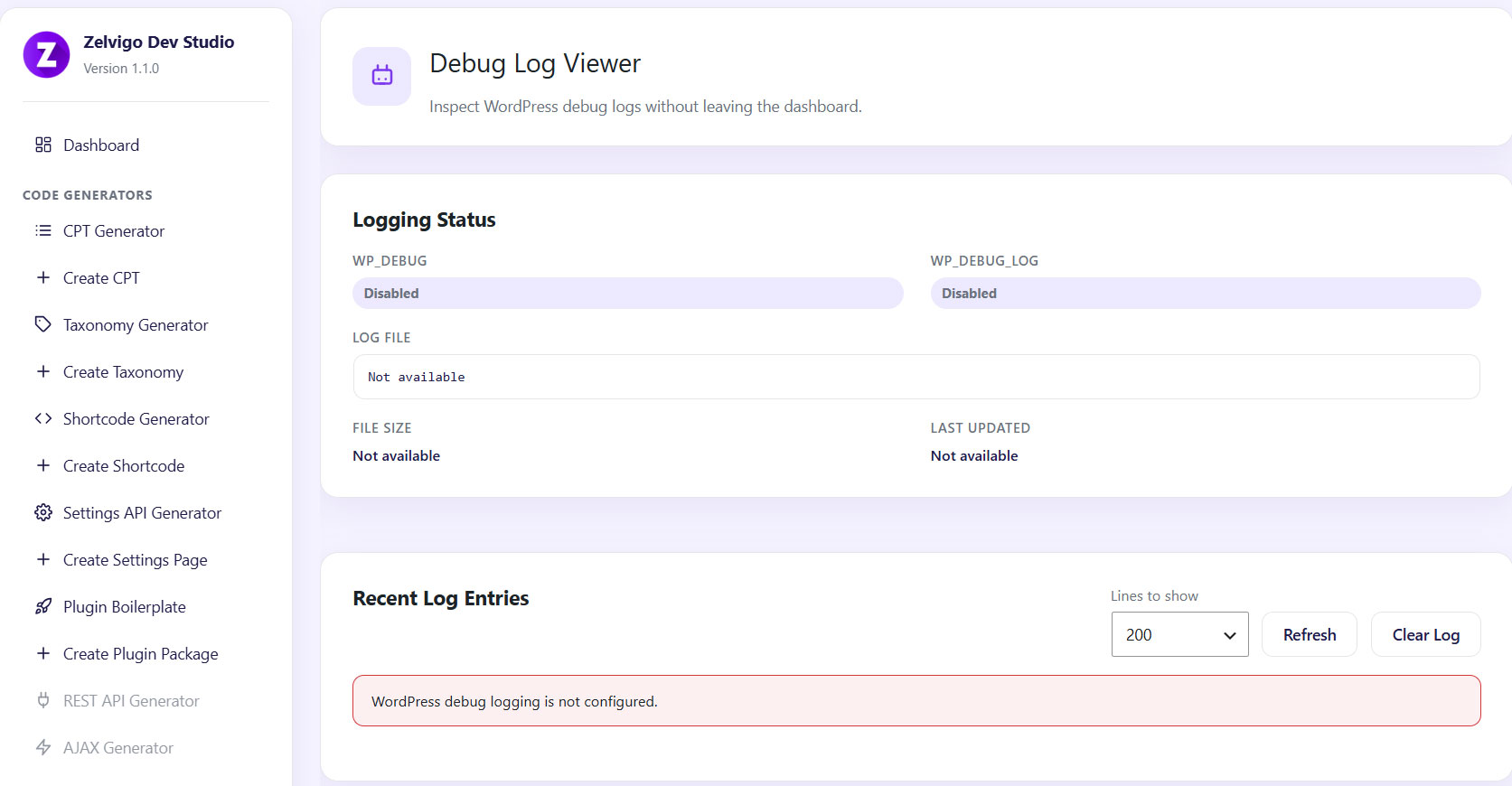
The Debug Log Viewer keeps that workflow inside admin: status, recent lines, refresh, and clear.
What you get
- Logging status — WP_DEBUG flags, log path, size, last modified
- Recent log entries — tail the last N lines (default 200)
- Refresh — reload contents while you reproduce a bug
- Clear log — empty the file when you’re ready for a clean run
- No license required — runs fully locally
How it works
Enable logging in wp-config.php:
define('WP_DEBUG', true);
define('WP_DEBUG_LOG', true);
define('WP_DEBUG_DISPLAY', false);
- Open Zelvigo Dev Studio → Debug Log Viewer
- Check logging status and recent entries
- Reproduce the issue, refresh, and inspect new lines
- Clear the log when finished
Pair it with
- Hook Explorer — see which callbacks are registered
- Plugin Conflict Detector — planned for a future release
- Cloud generators — build plugins faster once you’ve fixed the bug
Frequently asked questions
Do I need a Pro license?
No. Debug Log Viewer is a local tool and works without a license.
Why is my log empty?
Confirm WP_DEBUG and WP_DEBUG_LOG are enabled, and that PHP has written errors since logging was turned on.
Is this safe on production?
Prefer staging. If you must debug on production, keep WP_DEBUG_DISPLAY false and turn logging off when finished.
Read debug.log without leaving WordPress
Get Zelvigo Dev Studio for local tools plus cloud generators — or explore documentation to see the full toolkit.